
This section describes the basic hierarchical structure of 990 Tracker.
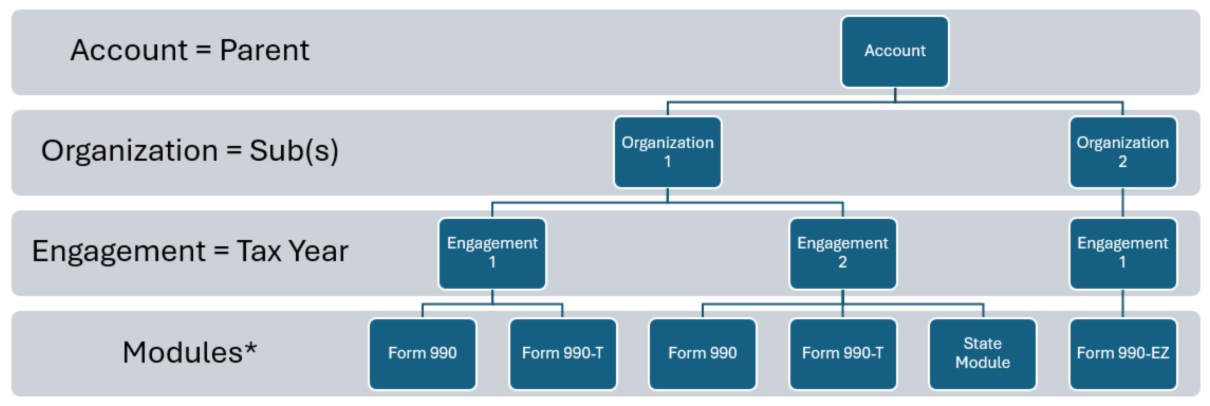
Account [Parent]
The top level of 990 Tracker data is the 'Account' level. This is the parent umbrella and each client is typically an 'Account'.
Organization
Under the Account/Parent, you will create Organizations. One Account can support multiple Organizations.
Engagement
Beneath each Organization are Engagements. Each Organization typically stores one Engagement per Tax year.
Modules
Lastly, you may enable multiple Modules (ie. Forms) for an Engagement.
Account ManagementAccess the Admin App by clicking your name on the top right-hand side of your Dashboard, then select "Account Management" from the dropdown.
- Left-hand Navigation tabs
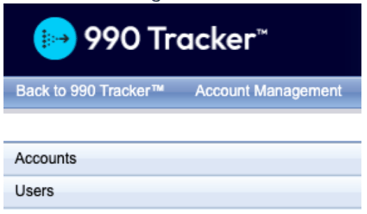
- Accounts – manage accounts, organizations, engagements
- Users – manage access, roles
Accounts & Organizations
Accounts
- Add Account (parent / top level)
- Account name
- Account Type (default to parent-sub)
- FEIN
- Engagement Code
- Filing Type
- ERO – default for all clients
- Test – can be used for admin / internal testing
- No Longer Client (different than final return); data retention will be ironed out. Lost clients only.
- Custom Features
- Adding master compensation module for an account.
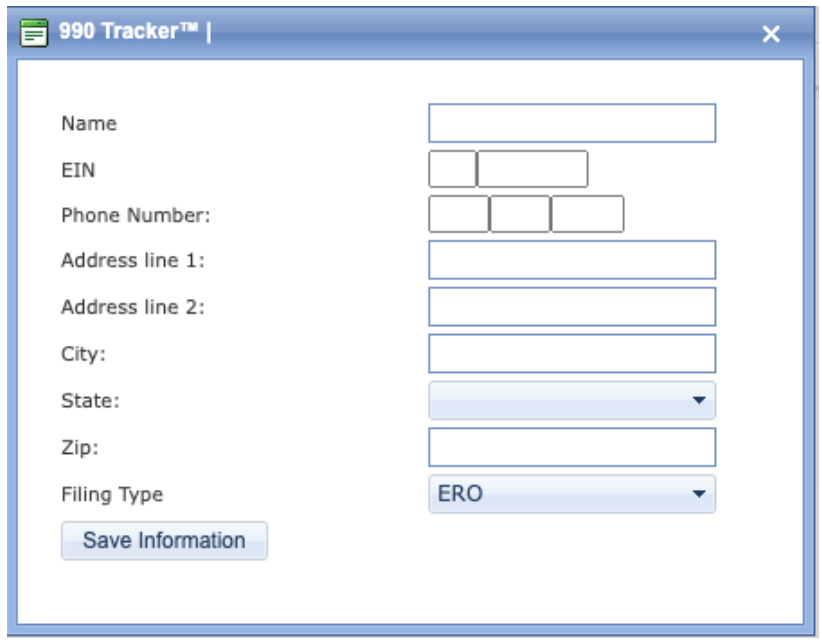
- Add Organizations (legal entity level)
- Input general information for legal entity
- Filing Type
- ERO – default for all clients
- Test – can be used for admin / internal testing. (Test types may not pass validation)
- Engagements (tax year options for forms & modules)
- Navigate to the appropriate year
- 'Add new engagement'
- Select Organization from drop-down
- Select tax year from drop-down
- Input tax year beginning & end dates
- Select all appropriate forms/features from the listing for that legal entity
- Move Account (move group of entities to sit under another account)
- Add Sub Account (large enterprises with divisions or regions to manage legal entity groupings)
Note: Master Compensation is not available through the Organization as it is an Account-level selection.
Organizations
- Use the carrot in left-hand navigation to expand account & view organization listing:
- Organization listed in black indicate an active engagement for that tax year
- Organizations 'grayed out' indicate no active engagement for that tax year
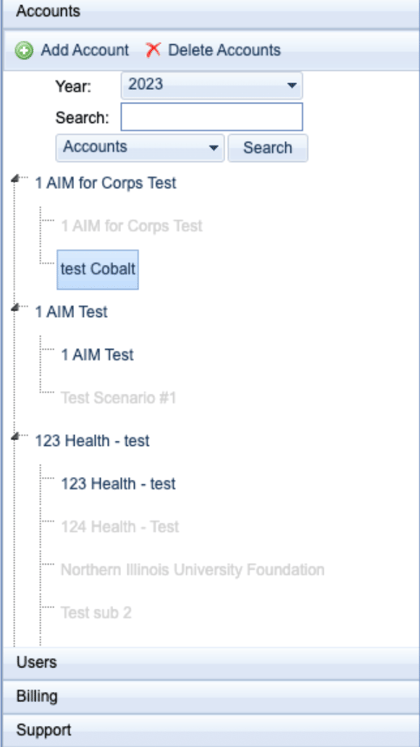
- Clicking on an organization in the left-hand navigation will reveal a navigation banner of tabs to manage that legal entity. While information can be input here, all legal entity-level general information should be input and maintained from the engagement. (see Item B - Dashboard Section below)
User Management
- Confirm whether all internal & client users will access via SSO
- Under the 'Users' tab, click 'Add User' and populate the following fields:
- Email Address
- First Name
- Last Name
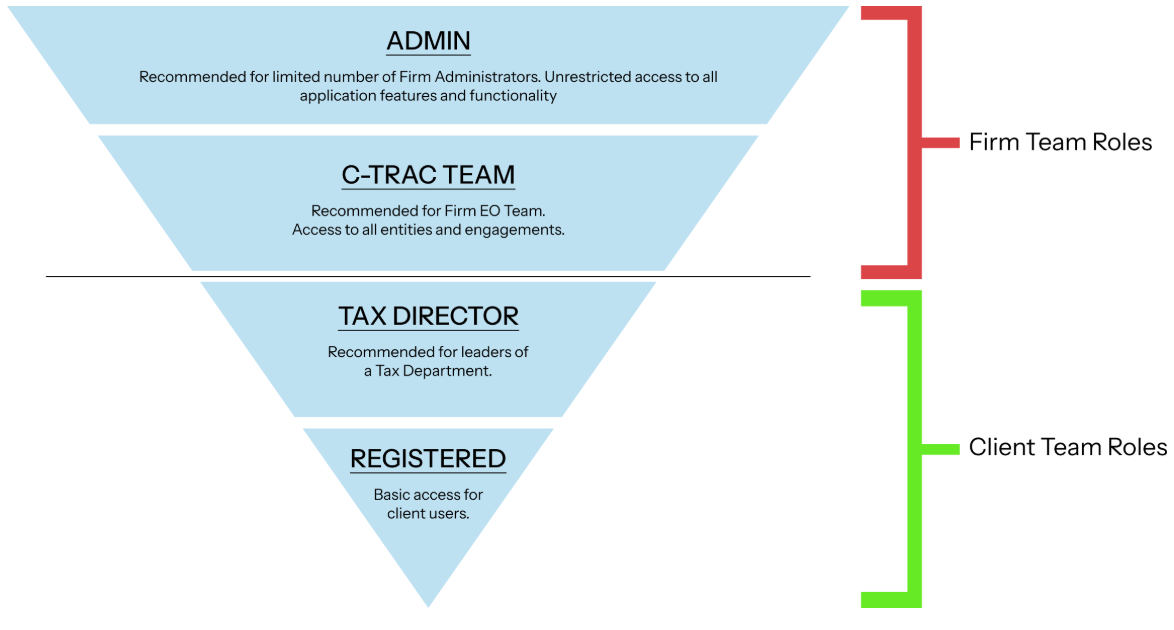
- 'Roles' are defined for an individual & will apply for all accounts & organizations that an individual has access to.
-
- EFileSubmission - Users who have access to push the button for e-file of returns. This can be enabled for any role.
- MasterComp - Users (internal and/or client) who should have access to the Master Compensation Module. This can be enabled for any role.
- Registered - Basic access (most commonly used for client users). Required for All users.
- Tax Director - Higher level access for client users, including the ability to lock/unlock returns, as well as override capabilities. All Internal Users should be assigned 'Tax Director'.
- CTRAC Team - Recommended for dedicated Firm EO Team, provides full access to all entities & engagements.
- Admin - Unrestricted access to application. Can add/remove Federal and State forms, and manage return status on the Status page. All Internal Administrators should be Admin
-
IMPORTANT: The 'Registered' Role is REQUIRED FOR ALL USERS.
- You can add users to accounts & organizations -OR- add accounts & organizations to a user.
Click 'Back to 990 Tracker' on the top, left-hand side of Account Management to get back to the application dashboard.
Dashboard
- "Resources"
- Return Tracker
- Use Date Picker to delete due date you want to filter to
- Modals reveal list of all returns housed within each status bucket, by year-end & by status.
- IRS Form Instructions
- Return Tracker
- "Engagement Management"
- Select the appropriate tax year tab
- Use the search bar or page through your entity listing to find the organization you want to work on.
- Click 'View' to access engagement.
- Once 'inside' an engagement, left-hand navigation appears & can be expanded/collapsed as needed.
- Dropdowns allow you to navigate between tax years and also legal entities.
- "Basic Data" expands:
- Status â this screen can be used to manage forms and modules and also manage/override due dates.
- 'Mark Prepared By' leaves date/time stamp for the preparation step
- 'Mark Reviewed By'
- 1st signoff leaves date/time stamp for 'Review - 1st Level'
- 2nd signoff leaves date/time stamp for 'Review - 2nd Level'
- 3rd signoff leaves date/time stamp and prompts drop-down for additional status selections (available on the dashboard).
- Signoffs in the status screen have no impact on e-filing or taking the next steps. They manage dashboard statuses and return tracker.
- State Module checkbox prompts green modal to turn on states needed in an engagement.
- “Enable admin status override” checkbox – when a return is e-filed & accepted, the status becomes “Accepted”. If that return is subsequently unlocked, the status returns to a “data input” status. This override selection is available for admin users to override status back to an “Accepted” status.
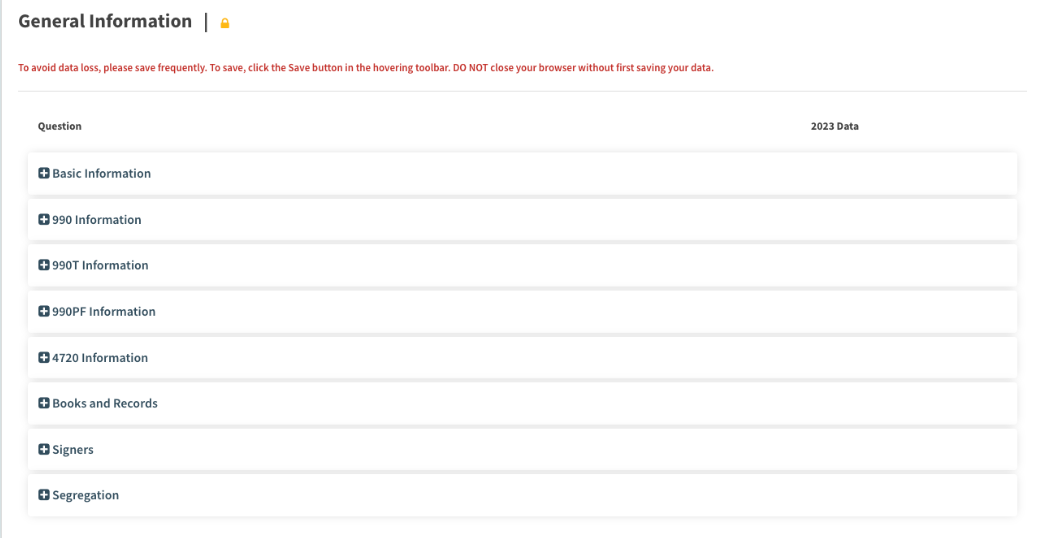
- "General Information" – houses all legal entity general information & form-specific inputs. Use the plus / minus signs to expand/collapse inputs.
- Status â this screen can be used to manage forms and modules and also manage/override due dates.
-
- "Paid Preparer" – future state will be pre-populated with a drop down selection for engagement teams to select the appropriate signer.
- "Permissions" – provides options to limit access of forms and modules for a registered user. Default is that a user with access to an engagement has access to all forms and modules within that engagement. This permissioning screen manages that access and can also provide “read only” access of forms or schedules to users as needed.
E-file
For e-filing instructions, please refer to the E-File Reference Guide
Moving Accounts and Organizations
To move an organization from one account to another, please follow the steps:
- Make sure the New Account is created
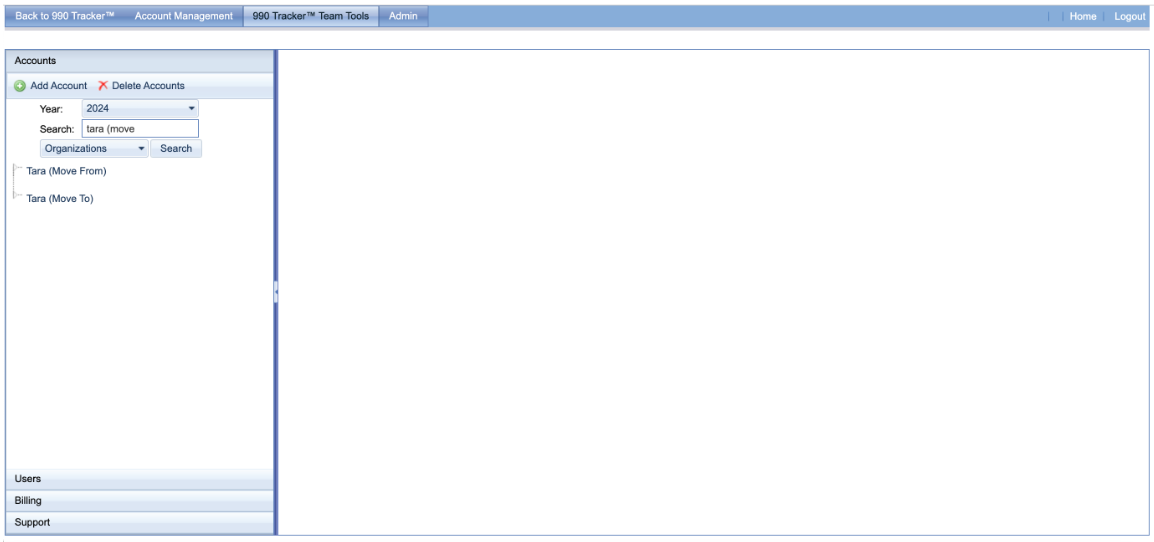
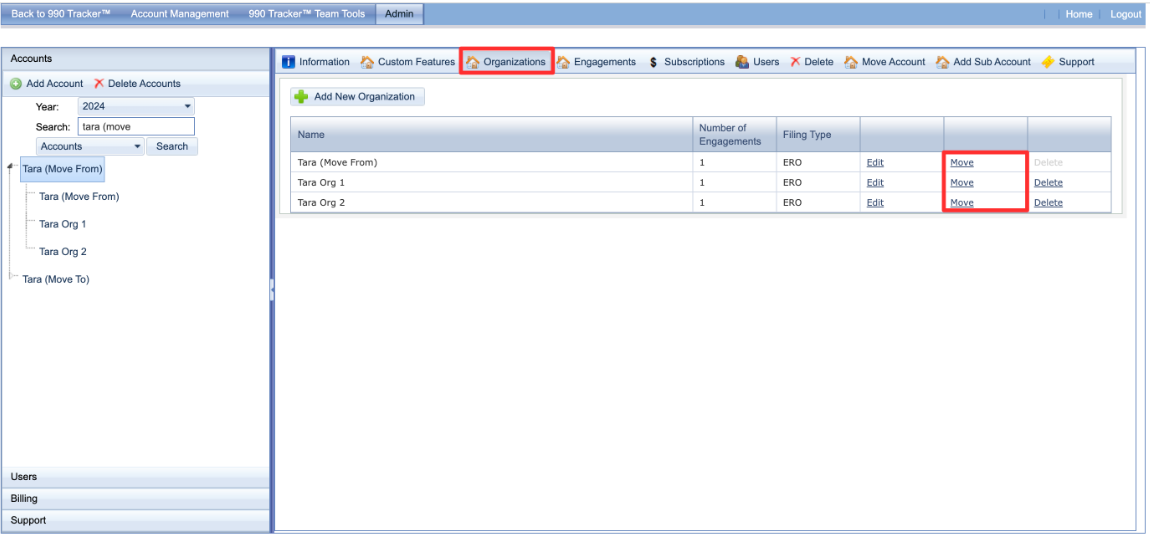
- Select the Account that includes the organization you wish to move to open the account view
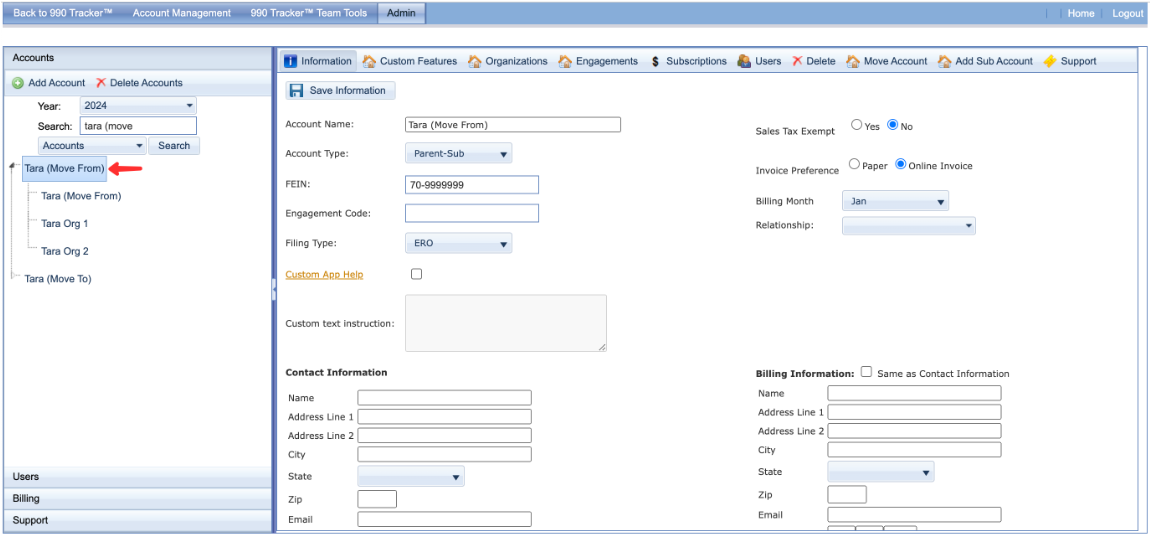
- Select the 'Organizations' tab on the right panel and click the 'Move' link on the org you wish to move
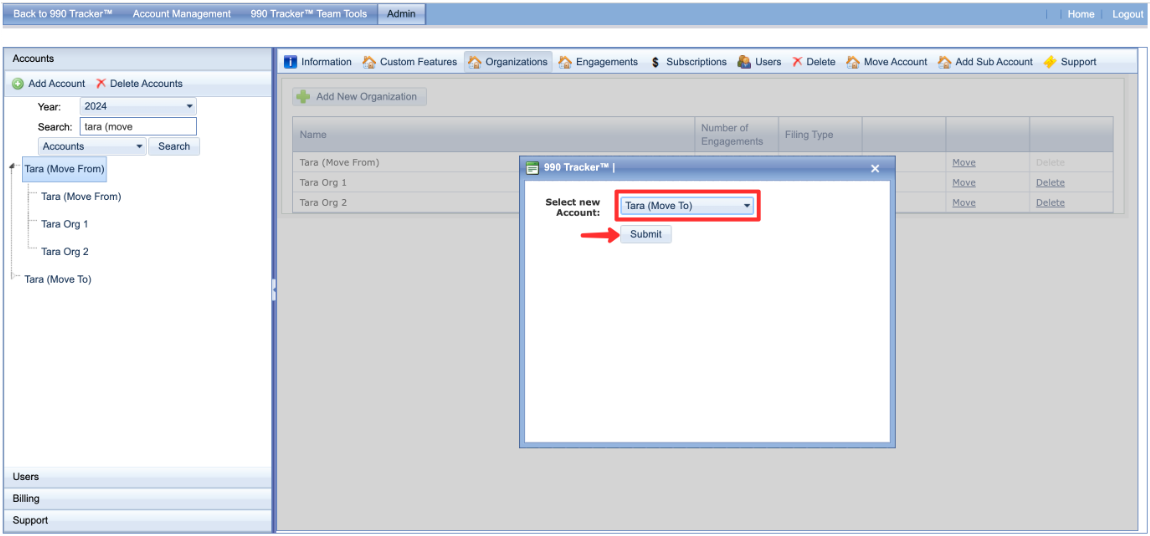
- Click 'Move' and select the account from the dropdown that the Org should be moved to, then click the 'Submit' button
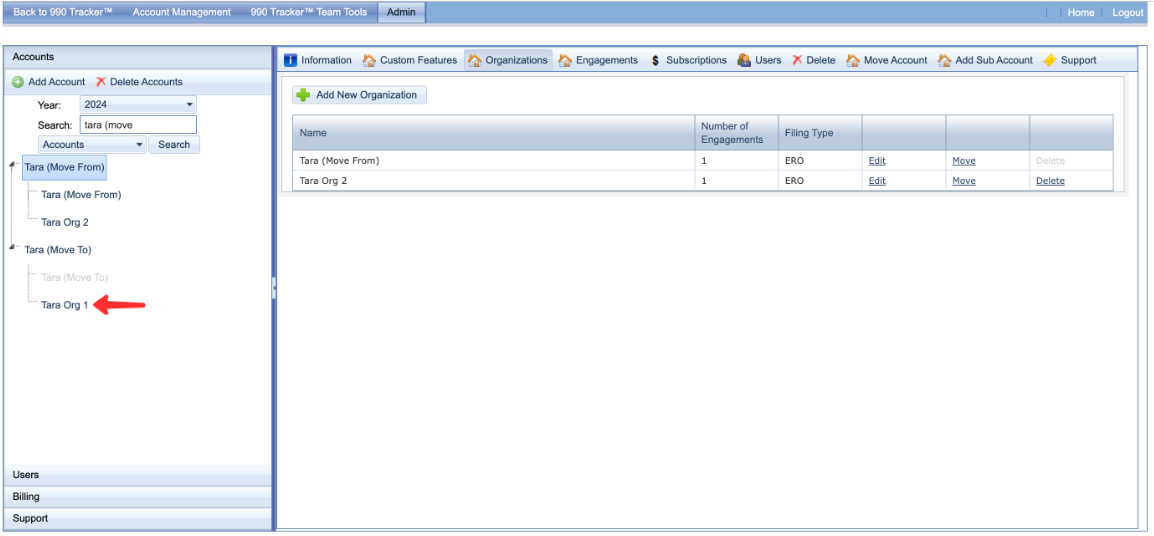
- You can now see that the Org is no longer listed in the current Account Organizations list, and is moved to the new Account Organization List
If you mistakenly created an 'Account' instead of an 'Organization', make sure you move the Organization(s) and not the Account.
- Select each org under the erroneous 'Account' and move using the steps listed above
- When you have moved all Organizations from the wrong Account folder to the correct Account folder, the empty (wrong) Account folder will automatically be deleted
DO NOT move an 'Organization' under another 'Organization'. This will cause 990 Tracker errors. Make sure you're moving 'Organizations' to an 'Account.'