
Before you begin
Important: You must open a support ticket with Thomson Reuters to have the Data Connection subscription enabled and the GoSystem application provisioned in your Thomson Reuters Developer Portal. The Data Connection is available to K1 Aggregator customers at no additional charge. A client administrator cannot complete either step without assistance from Thomson Reuters.
Identify the following contacts:
- A user with access to open and monitor a Thomson Reuters support ticket.
- A user who can create or access an account in the Thomson Reuters Developer Portal.
- A K1 Aggregator user with access to Tenant Settings.
- A GoSystem user who can confirm return, locator, and activity information.
In GoSystem, the terms return, locator, and binder may be used interchangeably.
Step 1: Create a Thomson Reuters Developer Portal account
Go to the Thomson Reuters Developer Portal and create or confirm the account that will own the GoSystem application.
Keep the email address associated with this account available. Thomson Reuters will need it when provisioning the application.
Step 2: Request provisioning from Thomson Reuters
Open a Thomson Reuters support ticket. This ticket is required even if you are already working with a Thomson Reuters account manager. Request both of the following in the ticket:
- Enable the no-cost Data Connection subscription for the firm's GoSystem account.
- Provision the GoSystem API application in the firm's Thomson Reuters Developer Portal account.
Include:
- The firm or company name.
- The Thomson Reuters account number, if available.
- The email address associated with the Developer Portal account.
- The requested API model:
https://developerportal.thomsonreuters.com/gosystem. - A request to name the application K1 Aggregator, or another easily identifiable name.
Do not purchase a separate general API package for this integration. If a fee is quoted, confirm that the request is specifically for the K1 Aggregator Data Connection and application provisioning.
Keep the ticket open until Thomson Reuters confirms that both the application and Data Connection are ready. Do not proceed to application configuration based only on a commercial or account-management confirmation.
Step 3: Configure the application
After Thomson Reuters provisions the application:
- Sign in to the Thomson Reuters Developer Portal.
- Open the application tile created by Thomson Reuters.
- Enter the following callback URL:
https://k1aggregator.k1x.io/integration/redirectgo. (past clients on the TR Analyzer URL will require a different callback URL. Check the K1 Aggregator GoSystem tab integration detail to confirm.) - Open Permissions and add each user who needs to use the K1 Aggregator integration.
- Return to Application Settings.
- Copy the Client ID and Client Secret.
Treat the Client Secret as a password. Store and share it using your organization's approved secure process.
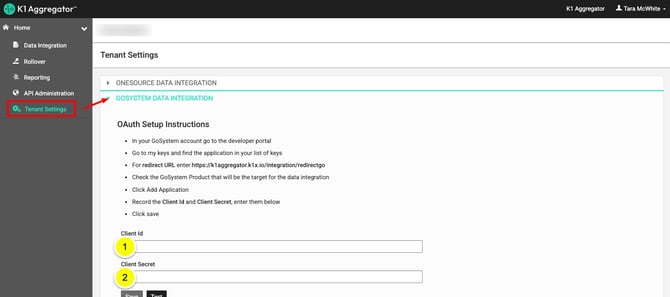
Step 4: Connect K1 Aggregator to GoSystem
- Sign in to K1 Aggregator.
- Open Tenant Settings.
- Expand GoSystem Data Integration.
- Enter the Client ID and Client Secret from the Developer Portal application.
- Save the settings.
- Select Test.
A successful test opens the GoSystem sign-in page. This confirms authentication, but it does not confirm that return and investment data are mapped correctly.
Step 5: Verify the target return information
Before transferring K-1 data, compare the K1 Aggregator instance with the target return in GoSystem.
Account Number
Enter the four-character alphanumeric value shown in the Account column of the GoSystem Returns screen.
Return ID
Enter the six-character alphanumeric value shown in the Return column. This may also be called the locator or binder.
Tax Year
The K1 Aggregator instance year must match the year of the target GoSystem return.
Entity Type and Tax Form Type
Both values must match the classification and tax type of the target GoSystem return.
State of Residence
For 1040 and 1041 returns, confirm the resident state in the applicable GoSystem organizer.
An authenticated connection cannot compensate for incorrect instance settings. A mismatch may prevent the transfer or route data to an unintended return.
Step 6: Verify investment and activity information
Review the following information for each investment selected for transfer:
Ownership
For 1040 returns, confirm the Taxpayer, Spouse, or Joint designation.
Investment Entity Type
Confirm that the Schedule K-1 type reflects how the investment is treated in the target return.
Activity Number
Enter the GoSystem activity number, which may contain up to 10 digits. K1 Aggregator uses the activity number together with the form type to match the GoSystem activity.
EIN
Confirm the nine-character Federal EIN.
Activity Name
Keep the activity name within the GoSystem character limit:
- 1040: up to 55 characters.
- 1041, 1065, 1120, and 1120S: up to 40 characters.
If GoSystem truncates an activity name, update the K1 Aggregator activity name to match the name stored in GoSystem before testing the transfer.
Data transferred through the direct integration
The GoSystem Data Connection transfers supported federal Schedule K-1 line items.
Current data transfer capabilities:
- Federal Schedule K-1 Lines 1–21 are sent and matched using activity number and form type.
- Lines 5, 11ZZ, and 13ZZ include the line total, but their supporting statement-level detail is not mapped into GoSystem's detailed input fields.
- The transfer sends a single total for a line and does not preserve a passive-versus-nonpassive split.
- State amounts do not currently map into GoSystem Tax through this integration.
- State withholding and composite-payment information is not mapped for tax year 2025.
- Section 199A detail, foreign tax credit detail, and other specialized sections are not mapped.
- K-3 data should not be expected to populate through the direct GoSystem transfer.
Always review the resulting GoSystem return after transfer. A successful API response confirms that the request was accepted; it does not confirm that every value available in K1 Aggregator populated in a GoSystem input field.
Foreign forms use a separate XML workflow
Foreign forms do not transfer through the direct GoSystem Data Connection. Export the applicable forms from K1 Aggregator as XML files, then import those XML files into GoSystem.
Thomson Reuters identifies the following foreign-form XML support:
- 1065: Forms 5471, 8865, 8886, and 8621.
- 1120: Forms 926, 5471, 8865, 8886, and 8621.
- Form 926 is not available for 1065 because it is not included in the applicable IRS schema.
Recommended first transfer test
Test with one representative return and a small number of investments before transferring a full population.
- Confirm the connection test succeeds.
- Verify the instance fields against the GoSystem Returns screen.
- Verify the activity number, form type, EIN, and activity name.
- Transfer the selected investment data.
- Open the target return in GoSystem.
- Confirm that the data reached the intended return and activity.
- Compare the transferred federal line totals with K1 Aggregator.
- Review Lines 5, 11ZZ, and 13ZZ for statement detail requiring manual entry.
- Identify any passive/nonpassive, state, K-3, Section 199A, foreign tax credit, or other specialized information requiring a separate workflow.
ONESOURCE Income Tax Express RS:
The provisioning and application-configuration steps in this article also apply to ONESOURCE Income Tax Express RS. When connecting the application in K1 Aggregator, enter the Client ID and Client Secret in the ONESOURCE Income Tax Express RS Data Integration section of Tenant Settings instead of the GoSystem Data Integration section.
Troubleshooting
The Developer Portal does not show an application
Confirm that Thomson Reuters provisioned the application for the correct Developer Portal email address. Creating a Developer Portal account does not create the GoSystem application automatically.
Thomson Reuters quoted an API fee
Clarify that the request is for the no-cost K1 Aggregator Data Connection subscription and GoSystem application provisioning, not a general API package.
The connection test succeeds, but data does not reach the expected return
Compare the Account Number, Return ID, Tax Year, Entity Type, and Tax Form Type with the GoSystem Returns screen.
Some data is missing after a successful transfer
Review the documented transfer limitations. Statement-level detail, passive/nonpassive classification, state data, K-3 data, Section 199A detail, foreign tax credit detail, and foreign forms may require manual entry or a separate workflow.
Related resources
- K1 Aggregator and GoSystem field information
- Thomson Reuters GoSystem K-1 Aggregator overview
- Thomson Reuters Developer Portal
For further assistance, contact the K1x Support Team by clicking on the "Get Help" button in our app or here in our Help Center.