
Why Use K1 Aggregator for Estimates?
K1 Aggregator helps you:
- Keep all estimated and actual K-1 data in one place
- Track which K-1s are received vs. still outstanding
- Review estimate totals across your portfolio
- Maintain visibility into assumptions as data evolves
Understanding Estimates in K1 Aggregator
When final K-1s aren’t available, you can track values in two ways:
- Estimate column
Used for internal tracking and modeling - Federal K-1 Amount column
Used for reporting and integration with tax software
⚠️ Important:
Only values in the Federal K-1 Amount column flow into your tax return.
The Estimate column is for tracking purposes only.
👉 A common workflow is to track values in the Estimate column, then move them to Federal K-1 Amount when you’re ready to integrate.
Common Ways to Use Estimates
Extension Filings
When K-1s are still outstanding at the deadline:
- Start with prior year amounts
- Update as K-1s are received
- Track missing items in one place
Forecasting & Planning
Use estimates to:
- Project tax liability
- Plan cash flow
- Evaluate investment performance
Cutoff Method
If using a cutoff date:
- Include actual K-1s received before the cutoff
- Use estimates for the remaining investments
How to Add Estimate Data
Option 1: Start with Prior Year Data (Fastest)
Best if you want a quick starting point.
- Go to Instance Settings → Rollover Settings
- Enable rollover of current year K-1 amounts into next year estimates
- Run rollover
- Review the populated estimate values
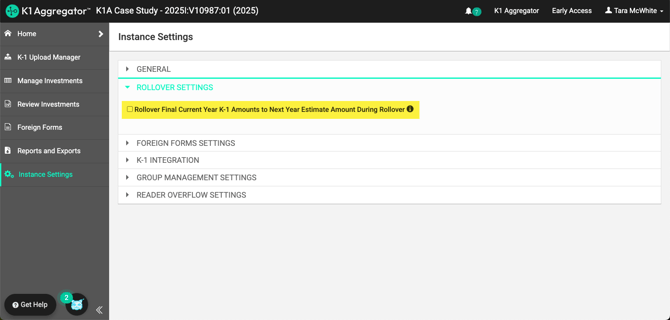
Related article: K1 Aggregator Rollover Settings
Note: Rollover Settings are managed at the Instance level. For more info: K1 Aggregator Rollover Settings.
Option 2: Upload in Bulk (Most Flexible)
Best for large datasets or external data.
- Go to Manage Investments
- Export investments or download the import template
- Locate the Federal K-1 / Estimate column
- Update the column header to “Estimate”
- Enter your estimate values
- Re-import the file
- Validate results
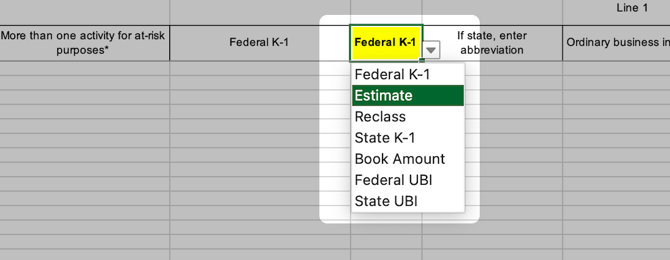
Updating Estimate vs. Federal K-1 via Excel
When using the export → edit → import workflow, the column header may appear as either:
- “Federal K-1”, or
- “Estimate”
This reflects where the data is currently stored in K1 Aggregator.
👉 You can change how values are treated by updating the column header before re-importing.
How it works:
- “Estimate” → values are imported as estimate-only (non-integrating)
- “Federal K-1” → values are treated as final and will integrate into your tax return
Example:
If you’ve been working in the Estimate column and are ready to finalize:
- Export your data
- Change the column header from “Estimate” → “Federal K-1”
- Re-import the file
Your values will now be treated as final and eligible for integration.
💡 Tip: This is the fastest way to update large volumes of data without manual edits.
Option 3: Manual Entry (Quick Edits)
Best for smaller updates.
- Enter values directly in the Estimate column at the investment level
How to Review Estimate Data
You can review estimate data using:
- K-1 Line Item Summary
(Filter for Estimate values) - K-1 Comparison Report
(Compare estimate vs. actual values) - Excel exports
(Select “Estimate” as the amount type)
How to Use Estimates in Your Tax Return
Because estimate values do not automatically integrate, most users follow one of these approaches:
Prior Year Baseline Approach
Start with a full return using prior year data, then replace with actuals over time.
Best when:
- Few current-year K-1s are available early
Hybrid Approach
Use actual K-1s as received and fill in missing values with prior year data.
Best when:
- You expect most K-1s to arrive on time
Excel-Based Approach
Make updates in Excel before uploading and integrating.
Best when:
- You need bulk edits or custom estimate logic
💡 Pro Tip
Use Statuses, Tags, and Estimate/Actual indicators in K1 Aggregator to keep large portfolios organized and easy to track.