
When creating a new Instance in K1 Aggregator, you can complete the Add Instance form individually or bulk upload multiple instances.
1. In the K1 Aggregator home screen, navigate to the 'Add Instance' button to pull up the Add Instance form.
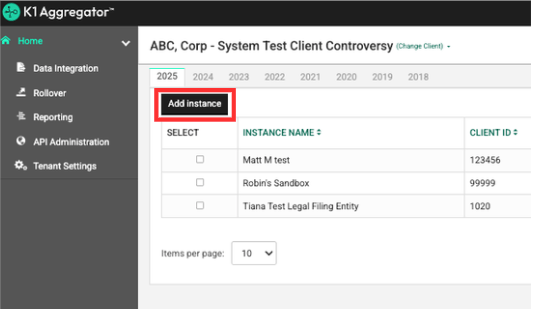
2. Complete the form with all required fields. All fields with * are required fields. The definitions below explain each property shown to properly fill out the form.
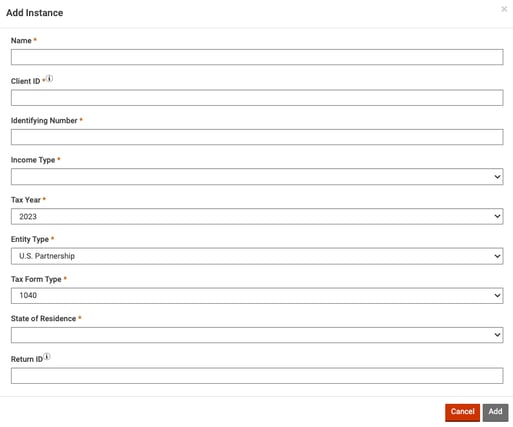
Field Definitions
All fields marked with an asterisk (*) are required.
Each field is defined below to ensure accurate setup.
Name*
The name of the entity or instance being added.
-
This should be the full legal name of the filing entity.
-
Use a clear and recognizable name for reporting and tracking purposes.
Client ID*
A unique identifier assigned to the client within the K1A system.
- If your organization is not directly integrating with CCH, GoSystem, or OIT, you may enter any preferred number or letter sequence.
- Recommended examples are internal control number or EIN.
-
Helps associate the instance with the correct client account.
Identifying Number*
A firm-specific identification number. This field can be entered with any preferred number sequence.
- Recommended examples are internal control number or EIN.
-
Often used for internal tracking or reconciliation purposes.
Income Type*
Refers to the type of income associated with the instance that reflects the entity.
-
Choose from Taxable Income, UBI, or Both Taxable Income and UBI.
-
This classification is important for tax reporting and compliance.
Tax Year*
The specific tax year for which the instance is being created.
-
Ensures that the data and forms are aligned with the correct fiscal period.
-
Must match the reporting year of the associated tax return.
Entity Type*
Defines the legal structure of the entity.
-
Examples include partnership, corporation, trust, or individual.
-
Determines the applicable tax rules and required forms.
Tax Form Type*
Specifies the type of tax form associated with the instance.
-
Examples include Form 1065 (for partnerships) or Form 1120 (for corporations).
-
Ensures the correct form is generated and processed within the system.
State(s) of Residence*
The state or states associated with the entity or return.
-
Used for state-level tax reporting considerations.
-
Select all applicable states from the dropdown field.
You may leave the following fields blank (Return ID, Include Return ID in Rollover, Account Number, and ONESOURCE Binder ID Number (If Applicable))
if your organization is not directly integrating with CCH, GoSystem, or OIT.
Return ID
A unique identifier for the specific tax return within the system.
-
Helps track and manage the return throughout its lifecycle.
-
Used for integration and internal return management workflows.
Include Return ID in Rollover
Determines whether the Return ID carries forward when rolling the instance into a new tax year.
-
If selected, the Return ID will automatically carry over.
-
If not selected, a new Return ID must be entered for the next year.
Account Number
Optional field used to store an associated account number.
-
May reference a brokerage, custodian, or internal account number.
-
Used for additional tracking and reconciliation.
ONESOURCE Binder ID Number (If Applicable)
Used when integrating with Thomson Reuters ONESOURCE.
-
Enter the Binder ID from ONESOURCE.
-
Enables synchronization between K1 Aggregator and ONESOURCE.
-
Leave blank if not using ONESOURCE.
Bulk Uploading Multiple Instances
Instances can be imported in bulk into K-1 Aggregator by using the Excel import template.
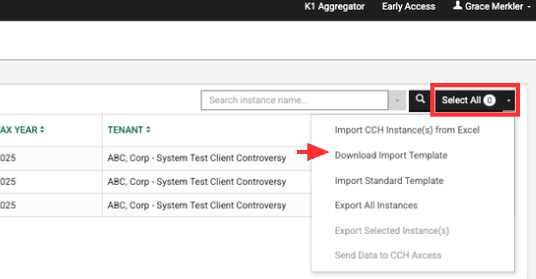
1. Start on the homepage of K-1 Aggregator. Access the import template by opening the drop down menu next to 'Select All' and select 'Download Import Template'
2. Open the import template to begin using. Enter the information for your entities into the provided template. Once complete, save the file and navigate back to K-1 Aggregator.
3. Using the drop down menu next to 'Select All', select 'Import Standard Template' to bring the completed file into the application.
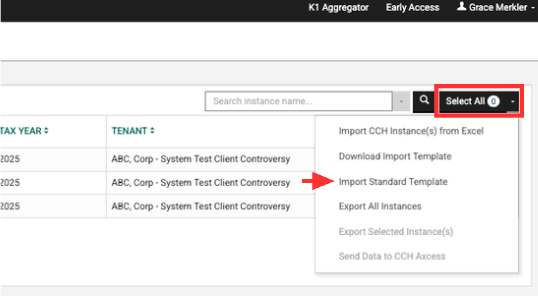
4. Once you have completed this action, the instances will populate on your dashboard.