
This article explains how to configure and use the K1x Desktop Software Data Transfer Tool to transfer 1065 K-1 data from K1 Aggregator (K1A) into an UltraTax 1040 tax return. This guide is intended for users who are new to the integration.
Prerequisites
Before you begin, confirm the following:
- UltraTax: You must use a desktop installation of UltraTax.
- Operating system: Windows 10, version 1607 or later, or Windows 11.
- Microsoft Office: Microsoft Office 2007 or later is required to support the Excel export used for the transfer.
- Internet browser: Google Chrome or Microsoft Edge.
- Installation permissions: You may need administrator permissions to install the Desktop Software Data Transfer Tool.
If you access UltraTax through a virtual machine, such as Citrix or an Azure VM, contact your internal IT department to determine whether a desktop installation is available.
Note: If you do not have administrator permissions on your computer, you may need assistance from your internal IT department to install the data transfer tool.
Match the Activity Number in K1 Aggregator to UltraTax
Before transferring data, match each investment's Activity Number in K1 Aggregator to its corresponding Unit Number in UltraTax. The Desktop Software Data Transfer Tool uses these numbers to match investments to the appropriate passthrough investment worksheets in the tax return.
- Open the applicable tax return in UltraTax.
- Locate the investment.
- Locate and note the investment's Unit number.
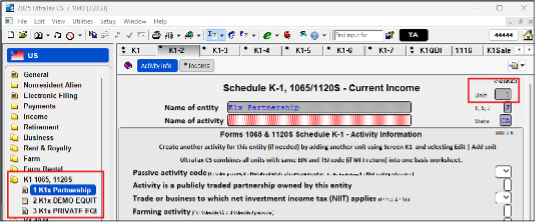
- Open the same investment in K1 Aggregator.
- Enter the UltraTax Unit number in the Activity Number field.
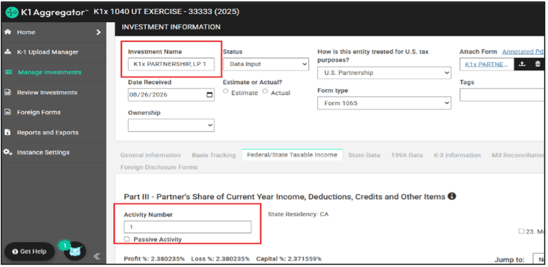
Warning: The Activity Number in K1 Aggregator must exactly match the corresponding Unit Number in UltraTax for each investment activity before you transfer data.
Install the Desktop Software Data Transfer Tool
You only need to install the tool before using it for the first time.
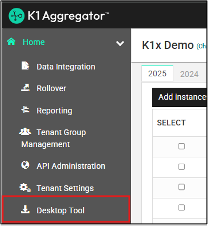
- In K1 Aggregator, locate Desktop Tool in the left navigation panel.
- Download the Desktop Software Data Transfer Tool.
- Open the downloaded setup.exe file.
- Follow the installation prompts.
- If prompted for an administrator username and password, contact your internal IT administrator for assistance.
- Wait for the installation to complete.
The data transfer tool, referred to as the Retrofit App in the source workflow, opens automatically after installation.
Note: If Desktop Tool does not appear in K1 Aggregator, contact your K1x Account Manager.
Select the K-1 Data to Transfer
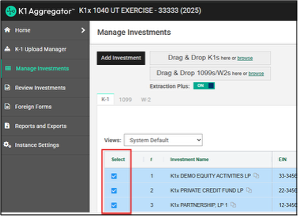
- In K1 Aggregator, navigate to Manage Investments.
- In the Select column, select each investment you want to transfer to UltraTax.
- Open Bulk Actions.
- Click Export Desktop Tool Import Package.
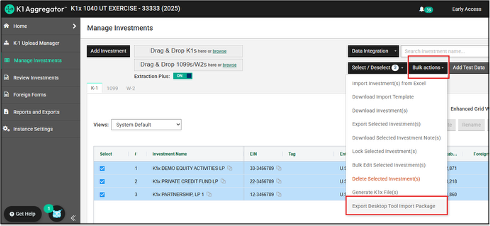
The import package downloads to your computer's Downloads folder.
Transfer the Data to UltraTax
- Open the UltraTax tax return where you want to transfer the K-1 data.
- Maximize the UltraTax window.
- Confirm that the UltraTax sidebar is open.
- Open the RETROFIT Desktop Software Data Transfer Tool on your computer.
- Select the appropriate Tax Year.
- Select Ultra Tax.
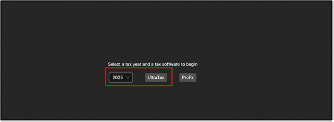
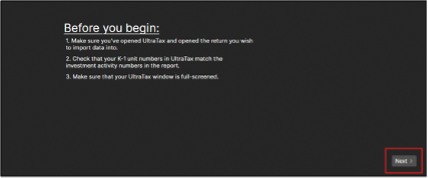
- Review the Before you Begin message.
- Confirm that your UltraTax return is open and maximized.
- Confirm that each K1 Aggregator Activity Number matches its corresponding UltraTax Unit Number.
- Click Next.
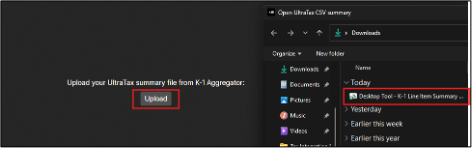
- Click Upload.
- Navigate to your Downloads folder.
- Select the downloaded Desktop Tool K1 Line Item Summary file.
- Click Next.
- Click Start to begin the transfer.
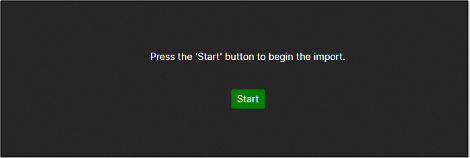
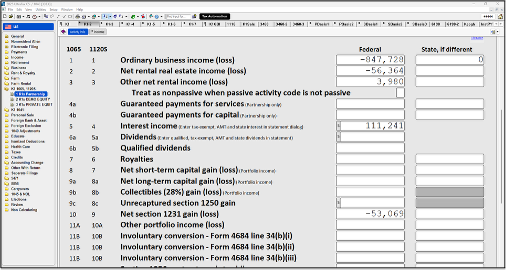
The Desktop Software Data Transfer Tool begins populating the corresponding K-1 input screen line items in your UltraTax 1040 return.
Warning: Do not use your computer while the data transfer is running. Using the computer during the transfer can interrupt the tool's progress.
Once the transfer has completed, review the applicable K-1 input screens in UltraTax to confirm that the expected data has populated.
Quick Troubleshooting
I don't see Desktop Tool in K1 Aggregator.
Contact your K1x Account Manager.
I'm prompted for administrator credentials during installation.
Contact your internal IT administrator for assistance.
I use UltraTax through Citrix or an Azure virtual machine.
Contact your internal IT department to determine whether a desktop installation of UltraTax is available.
The Activity Number and Unit Number do not match.
Before beginning the transfer, update the Activity Number in K1 Aggregator so that it exactly matches the corresponding Unit Number in UltraTax.