
|
If you see |
Go to |
|
You sign in but see training or Knowledge Base pages instead of 990 Tracker |
Open 990 Tracker from the right address |
|
The message "We're sorry, but an unexpected error has occurred" when you sign in |
Fix the "unexpected error" at sign-in |
|
Your organization or return does not appear, or you cannot open it |
Your organization or return does not appear |
|
A new tax year does not appear |
The new tax year is missing |
|
Master Compensation is missing or says it is not available |
Master Compensation does not appear |
|
Your email address changed |
Your email address changed |
Before you begin
- You must be able to sign in. If you cannot sign in, or your account is locked, use Troubleshooting K1x Login Issues.
- Access in 990 Tracker is granted for each engagement. Being listed under an organization or account does not give you access to its returns on its own.
- Have ready: your organization name or organization number, the tax year, and the email address you use to sign in.
Open 990 Tracker from the right address
If you sign in but see training videos or Knowledge Base pages and no 990 Tracker, the address you used does not lead to 990 Tracker. This often happens when a saved bookmark points to the wrong page.
- Close all browser tabs and windows that have K1x open.
- Open k1x.okta.com and select the 990 Tracker tile, or use the address your firm provides.
- Save a new bookmark from the 990 Tracker page and delete the old one.
Fix the "unexpected error" at sign-in
If you see "We're sorry, but an unexpected error has occurred and prevented processing of your prior request. Please contact your system administrator." when you sign in or open 990 Tracker, the address in your browser is usually not a valid sign-in address, for example an old or edited bookmark or a link copied from an error page.
- Close all K1x tabs and windows.
- Open k1x.okta.com and select the 990 Tracker tile, or use the address your firm provides.
- Replace any saved bookmark with the working address.
- If the error continues and other people at your organization can sign in, contact support. Include the full address shown in your browser when the error appears.
If the error appears only on one form, one state or when you print, it is not a sign-in problem. Contact support and name the form and tax year.
Your organization or return does not appear
Access is granted for each engagement, so you can sign in and still see nothing until you are added to the engagement.
- Check that you are on the correct tax year tab.
- Ask your Tax Director or an administrator to open the engagement, select Basic Data, then Permissions, then Add Permission, and select your name. See Add 990 Tracker Users for the full steps.
- Close 990 Tracker, sign in again and check that the organization appears.
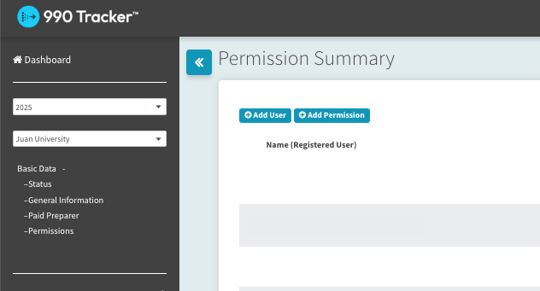
If you are an administrator or Tax Director and still cannot open an engagement, ask another administrator or contact support to add you to that engagement at support@k1x.io. Please include the engagement name, tax year, and user first and last name and email address/username.
The new tax year is missing
A new tax year does not appear until its engagement is started. Administrators can start it by rolling the prior year forward. If you are not an administrator, ask yours to start it. If you do not have an administrator or cannot start it, contact support with the organization name, the prior tax year and the new tax year.
Master Compensation does not appear
Master Compensation is turned on for the account, and each user needs access to it. Only an administrator can enable it. Ask your administrator to enable Master Compensation and to give you access. After the change, sign out, sign in again and look for Master Compensation in the left navigation.
Your email address changed
If your email address changed, for example because your organization changed its email domain, the verification email goes to the old mailbox and you cannot finish signing in. Contact support with your old and new email addresses. You will receive a new activation email for the new address, and you will need to be added to your engagements again. If several people are affected, send one list.
Contact support
Email support@k1x.io or submit a request at support.k1x.io. Include:
- Your organization name or number and the tax year
- The email address you sign in with
- The exact message you see
- The full address shown in your browser when the problem happens
- When the problem started
- Troubleshooting K1x Login Issues
- Add 990 Tracker Users
- 990 Tracker Guide | Master Compensation Module
- 990 Tracker Quick Start Guide
Never send your password or a verification code to anyone, including K1x Support.