
Error message
You may see either of these messages, on a federal or a state return:
PIN is missing from element PractitionerPINGrp.
The element 'PractitionerPINGrp' in namespace 'http://www.irs.gov/efile' has incomplete content. List of possible elements expected: 'PIN' in namespace 'http://www.irs.gov/efile'.
Why this happens
When an engagement is filed as an ERO and signed with a PIN, 990 Tracker creates the practitioner PIN automatically. It is the last five digits of an EIN, and the EIN it uses depends on your Paid Preparer settings:
|
Paid Preparer setup |
EIN used for the PIN |
|
Paid Preparer and ERO are the same |
Firm EIN |
|
Paid Preparer and ERO are different |
ERO EIN |
|
Self-prepared |
The organization's EIN |
If the EIN for your setup is blank, the PIN is blank and validation reports the error.
Before you begin
You need access to Basic Data for the engagement. Unlock the page if it is locked.
Steps
1. Open Basic Data, then Paid Preparer.
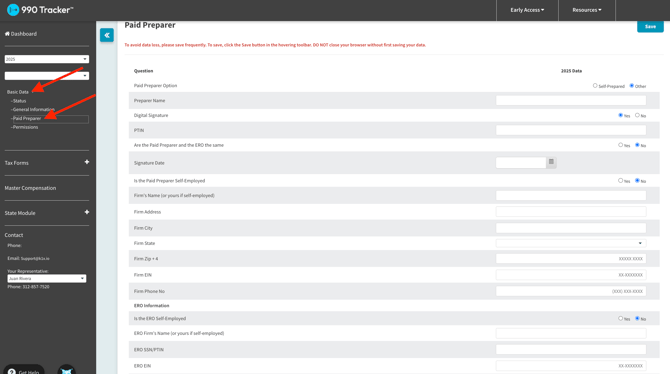
2. Check Are the Paid Preparer and the ERO the same.
3. If you answered Yes, enter the Firm EIN.
4. If you answered No, scroll to ERO Information and enter the ERO EIN.
5. If the return is self-prepared, open Basic Data, then General Information, and confirm that Employer Identification Number is entered.
6. Save your changes.
7. Run validation again.
The error clears when the correct EIN is present. The EFIN field on the Paid Preparer page is read-only and does not need to be changed.
Notes
- Do not edit the XML file to add a PIN. Fix the Paid Preparer information and run validation again.
- The PIN is generated from the EIN you enter. If you enter a different EIN later, run validation again so the PIN updates.
- If the Paid Preparer page is already complete and the error remains, contact the K1x Support Team by clicking Get Help in the app or in our Help Center. Include the product, engagement name, tax year, and the full error text.